Daemonising Celery on Windows
To ensure that the Celery task queue is started at system start-up it is advisable to launch Celery using a batch file and configure Windows Task Scheduler to run this at system start-up.
Celery will sometimes fall over during the execution of a long task. In this situation it will not restart on its own. Windows Task Scheduler can be used to restart Celery on a regular basis. In addition it can be used to ensure celery is running a few minutes prior to a scheduled PACS query.
An example batch file is shown below:
1 2 3 4 5 6 7 8 9 10 11 12 13 14 15 16 17 18 19 20 21 22 | :: Change to the drive on which OpenREM is installed and navigate to the
:: OpenREM folder
D:
CD D:\Server_Apps\python27\Lib\site-packages\openrem
:: Attempt to shutdown celery gracefully
celery -A openremproject control shutdown --timeout=10
:: Pause this file for 10 s to ensure that the above has time to work (you may
:: need to check that the 'timeout' command is available on your Windows
:: system. Some systems may have 'sleep' instead, in which case replace the
:: line below with:
:: SLEEP 10
TIMEOUT /T 10
:: Kill any remaining celery tasks (ungraceful) and delete the pid file in case
:: the above graceful shutdown did not work
TASKKILL /IM /F celery.exe
DEL /F E:\media_root\celery\default.pid
:: Restart a new instance of celery
celery worker -n default -P solo -Ofair -A openremproject -c 4 -Q default --pidfile=e:\media_root\celery\default.pid --logfile=e:\media_root\celery\default.log
|
Lines 3 and 4 navigate to the OpenREM drive and folder. Line 7 attempts to
gracefully shutdown celery. Line 18 kills any celery.exe processes that are
currently running in case the graceful shutdown didn’t work. Line 19 deletes
the default.pid process ID file that exists in the celery log file
location. Celery won’t restart if this pid file exists. Finally, line 22 runs
a new instance of celery. If you wish to use this example you will have to
ensure that the drive letters and paths are changed to match your own OpenREM
system installation.
Setting up a scheduled task
Open Task Scheduler on the OpenREM server and then click on the Task Scheduler Library
item in the left-hand pane. This should look something like figure 1 below, but without the
OpenREM tasks present.
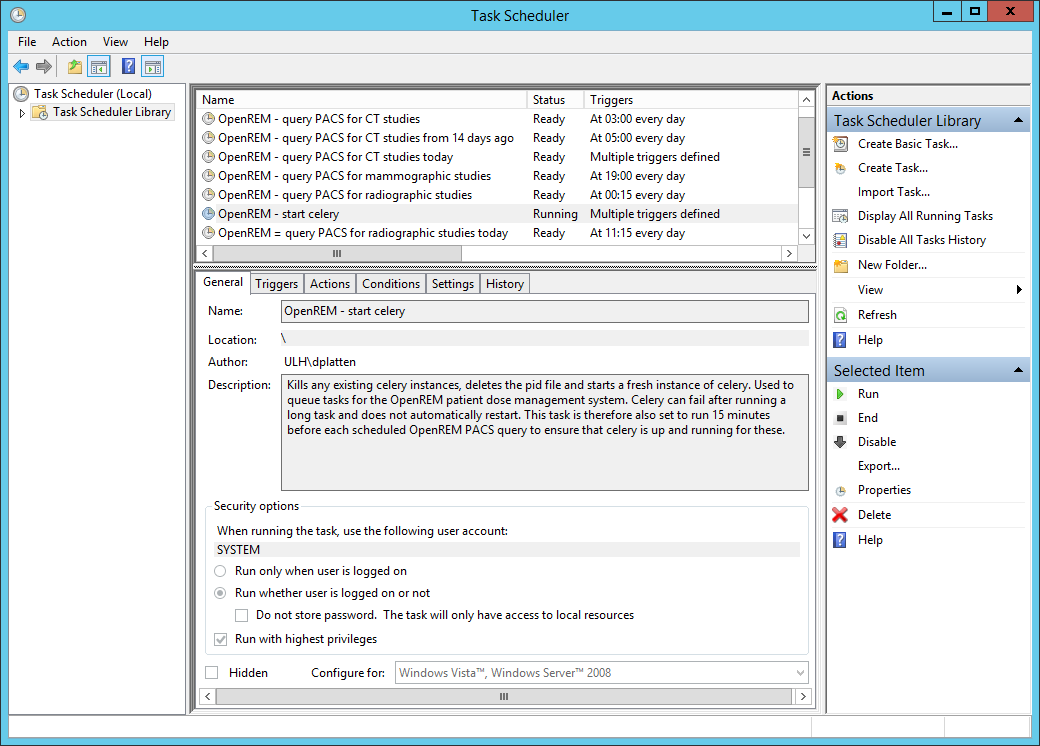
Figure 1: An overview of Windows Task Scheduler
To create a new task for celery click on Create Task... in the Actions menu in the
right-hand pane. Give the task a name and description. You may wish to use something similar
to the following:
Attempts to gracefully shutdown any existing celery instances, then kills any remaining
celery instances after 10 seconds. Deletes the celery pid file and then starts a new
instance of celery. This is used to queue tasks for the OpenREM patient dose management
system. Celery can fail after running a long task and does not automtically restart.
This task is therefore also set to run 15 minutes before each scheduled OpenREM PACS
query to ensure that celery is up and running for these.
Next, click on the Change User or Group button and type system in to the box, then
click Check Names, then click OK. This sets the server’s SYSTEM user to run the
task. Also check the Run with highest prilileges box. Your task should now look similar
to figure 2.
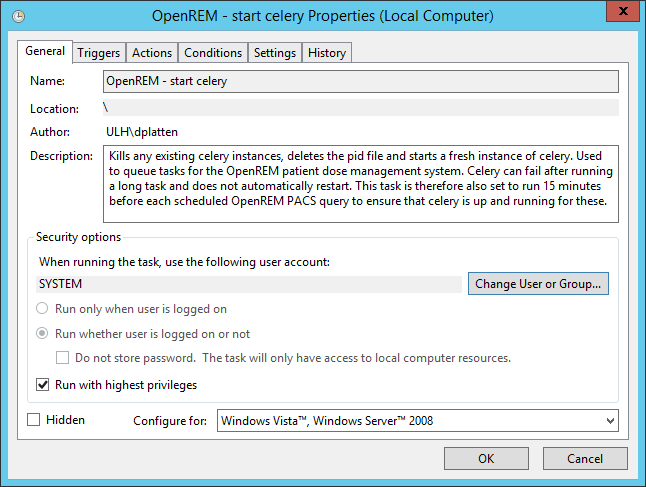
Figure 2: General properties
Next, click on the Triggers tab so that you can set when the task will be run. As a
minimum you should add an At startup trigger. To do this, click New.... In the
dialogue box that appears select At startup from the Begin the task options and ensure
that the Enabled checkbox is selected. Then click OK. You may wish to add other
triggers that take place at specific times during the day, as shown in figure 3.
In the example shown in figure 3 celery is started at system start up, and restarted multiple times each day to ensure that it is running before any PACS queries. Your requirements may be more straightforward than this example.
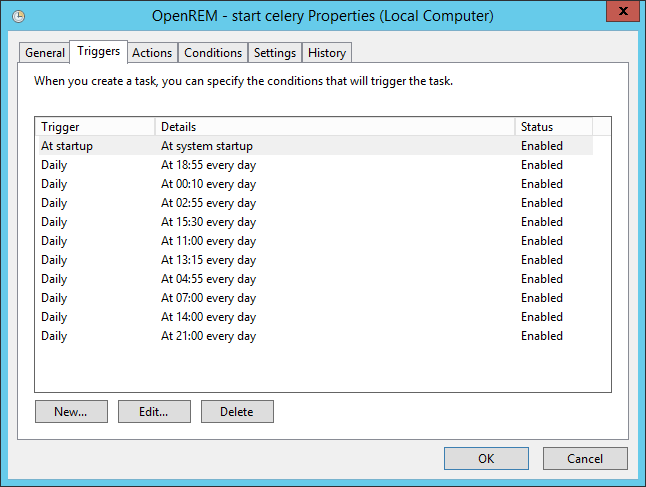
Figure 3: Trigger properties
Now click on the Actions tab so that you can add the action that is taken when
the task is run. Click on New..., and in the dialogue box that appears select
Start a program as the Action. Click on Browse and select the celery
batch file that you created earlier. Click OK to close the New Action
dialogue box. Figure 4 shows an example of the the Actions tab.
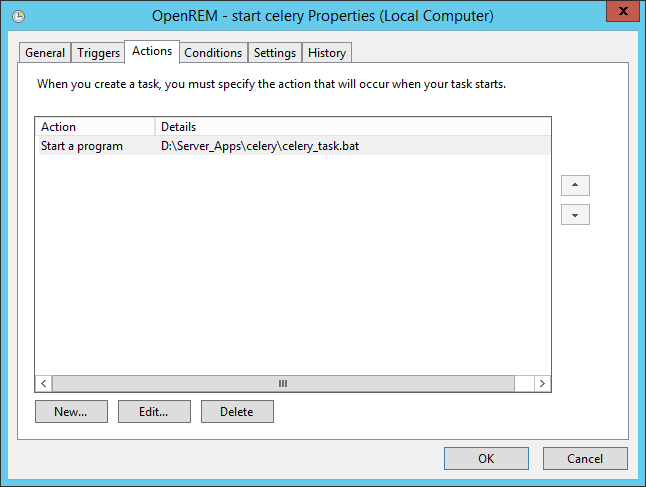
Figure 4: Action properties
There are no particular conditions set for the task, as shown in figure 5.
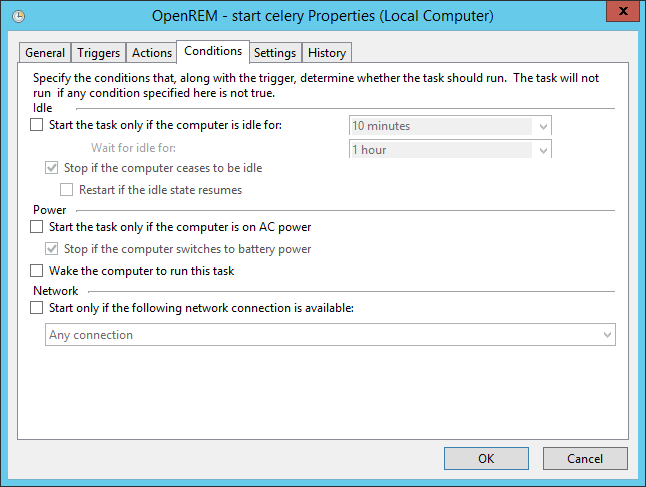
Figure 5: Condition properties
Finally, click on the Settings tab (figure 6). Check the Allow task to be run on demand
box, and also the If the running task does not end when requested, force it to stop box.
Choose Stop the existing instance from the If the task is already running, then the following rule applies:
list. Then click the OK button to add the task to the scheduler library.
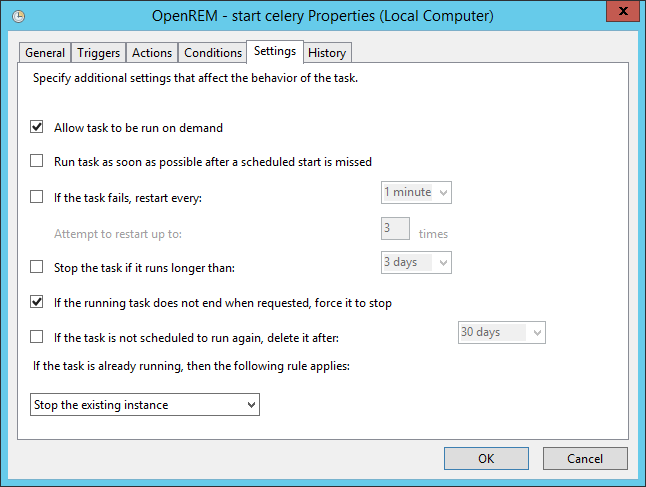
Figure 6: Task settings